Provider Control
Provider Control is the product-oriented management surface for a selected device. It organizes provider, model, route, and proxy operations into a continuous flow; use the CLI when you need scripting, batching, or exact reproducibility.
Provider credentials are managed by the target CLI; the App shows only masked values and status summaries. Model requests are processed under the selected provider's terms. See Data and execution boundaries for local execution, remote control, and provider-data scope.
Add a provider
When the target device uses OriginRouter Cloud, select a Cloud model directly. Create a local provider for an own API, enterprise gateway, or local model.
- Open Provider Control and confirm the target device at the top.
- Choose Add Provider.
- Select the provider type and enter the base URL, authentication fields, and optional default model.
- Save and run a test.
- Open Models and fetch
/v1/models, or add a model manually.
The test sends a minimal real inference request. A reachable port or successful /models response does not prove that inference works.
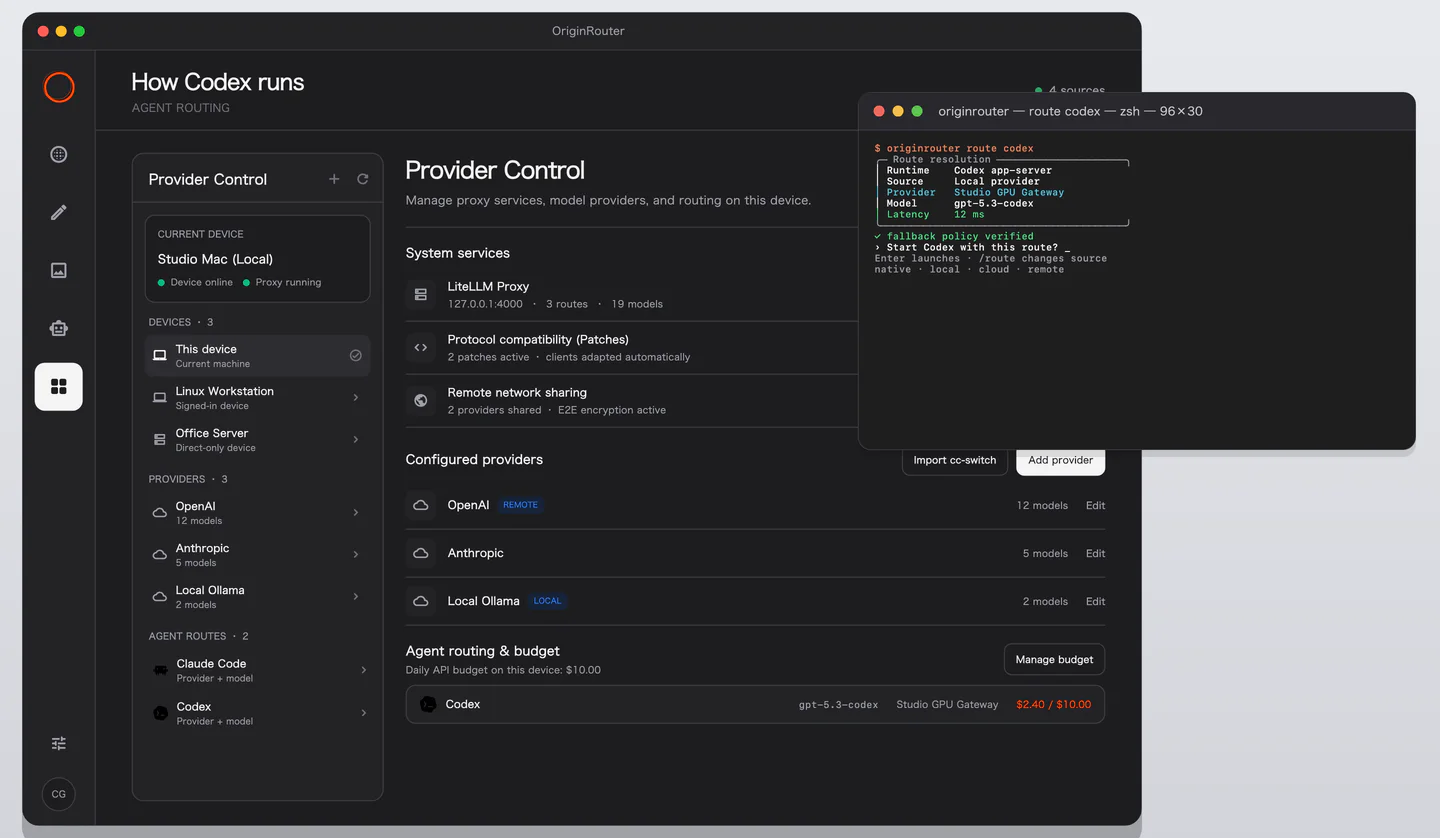
Enable models and remote use
Each model has two independent controls:
- Enabled: local routes on this CLI may use the model.
- Remote allowed: trusted remote devices may use the model through Remote Share.
Remote permission does not replace local enablement. Saved keys are displayed as masked state; the App does not read the original secret back from the CLI.
Configure agent routes
- Claude Code uses
mainandsmallslots. - Codex uses a
mainslot. - A route source may be a local provider, OriginRouter Cloud, or an authorized remote device.
After a change, inspect the effective route before launching an agent. See Models and routing for the CLI equivalent.
For batch changes or scripted deployment, use the CLI commands in Models and routing.
Proxy and request history
Device details show proxy state, address, and request history.
After changing a provider or route, first confirm that the runtime state has updated. If it has not, restart the proxy and test the model again.